A technician submits a protocol, and a day later the manager notices a missing photo or an incorrect material quantity. Deratix now lets you continue working with a submitted protocol — reopen it, return it to the technician for corrections, or have it reviewed before delivery. Each of these options is optional, and the company enables only what its workflow requires.

Reopening and revisions
A submitted protocol can be reopened at any time. The system automatically saves the original state — everything that was in the protocol at the time of submission, including the PDF. This ensures full traceability of what the protocol looked like before the edit.
The protocol number stays the same; only a revision label is added — for example, Rev. 1, Rev. 2. For the client and for record-keeping, it’s clear that this is the same protocol with an updated version.
When reopening, the manager can provide a reason — such as “add photo documentation” or “correct material consumption.” After editing, the protocol is resubmitted in the usual way.

A practical detail: when resubmitting, the system does not require the client’s signature as mandatory. If the client is not present, the protocol can be submitted without it — the system only displays a warning about the missing signature.
Reopening is activated in settings. A company that doesn’t need it simply leaves this option turned off.
Manager approval before delivery to the client
Some companies need the manager to review every protocol before it reaches the client. Others prefer the technician to submit directly. Deratix supports both approaches, and the company can choose which one works best at any time.
Optional review — the technician can submit the protocol directly to the client or first send it to the manager for review. It’s up to them.
Mandatory review — the technician submits the protocol “for review,” and the manager either approves and sends it to the client or returns it to the technician with a note on what needs to be fixed. The technician sees the returned protocol in the list with a special badge and can edit it right away.
This entire process is controlled by a single toggle in settings. When turned off, protocols are created and submitted directly — with no intermediate steps.

Preparing a protocol in advance
For scheduled service visits, a manager can prepare a protocol before the technician heads out. They fill in the client, address, work type, and other details that are known ahead of time.
On site, the technician opens the prepared protocol, adds the results from the service visit, and submits it — for review or directly to the client, depending on the selected mode.
This option is also enabled separately. A company where the technician creates protocols from scratch doesn’t need to use it.
What the system checks before submission
Before submitting a protocol, the system evaluates whether anything important is missing. It can check the technician’s signature, client’s signature, photo documentation, recommendations, materials, pests, and contact person.
Each of these checks can be set to one of three levels:
- Off — the system does not check this item.
- Warning — the system displays a warning, but submission is not blocked.
- Required — the protocol cannot be submitted until the item is provided.
Settings are separate for technicians and managers. For example, a company may require photo documentation from the technician, but allow the manager to resubmit a reopened protocol without it.
By default, all checks are turned off. The company enables only those that make sense for its workflow.


Complete history in one place
Every protocol contains a timeline of all events — creation, edits, signing, submission for review, return, and reopening.
Changes are recorded at the field level. If the technician changes a material quantity or adds a photo after reopening, the history shows exactly what changed and when.
If protocol data changes after someone has signed it, the system flags it and shows which fields have changed since the last signature.
When someone else is editing the protocol, others can see it. The system displays the name of the person currently editing and prevents concurrent edits.

Documents in folders
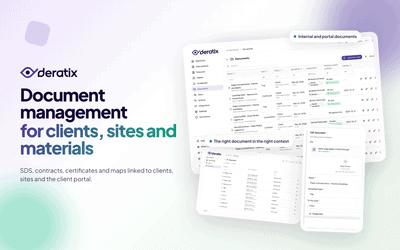
Alongside the existing table view, a new folder view is now available. Documents are organized by type — SDS, certificates, contracts, maps — and within each folder further by client and time period.
Both views are available and you can switch between them with a single click. If a folder level contains only one item, the system automatically skips it and displays the content directly.

In the next release, we’re preparing bulk file uploads. Instead of repeatedly opening a dialog for each document, you’ll be able to select multiple files at once, set shared properties — type, site, portal visibility — and upload them in one step. File names are automatically populated from the original file names and can be edited before upload.
Quick client creation
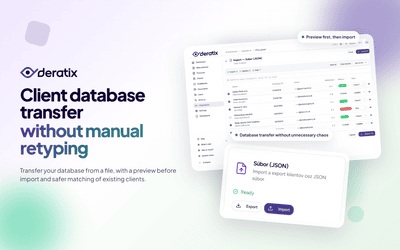
When creating a new client, you can switch to a simplified mode where you only need to enter the name and address. Other details — email, company ID, client type — are optional or can be filled in later.
In settings, you can choose whether email should be required even in this mode, and select a tag that will be automatically assigned to clients created this way. The full form with all fields remains available and can be switched to at any time.

Additional improvements
Floor and unit number in addresses — new fields for floor and apartment or office number have been added to client addresses. Both are optional. When filled in, they automatically appear in protocols, PDFs, and emails.
New address directly from a protocol — if a client doesn’t have a site on file yet, you can add one directly while creating a protocol without leaving the form. The contact person is pre-filled from the client’s name and can be edited.
Related features
Related documentation
- Creating a Protocol
- Protocol Detail
- Protocol History
- Protocol Settings
- Section Settings
- Document Management
- Client Database
Conclusion
Version 0.60 extends protocol management with review, revisions, and advance preparation. Each of these options can be enabled or disabled independently — the company tailors its workflow to its own needs without having to change the way it works today.
A complete overview of changes is available in the changelog.