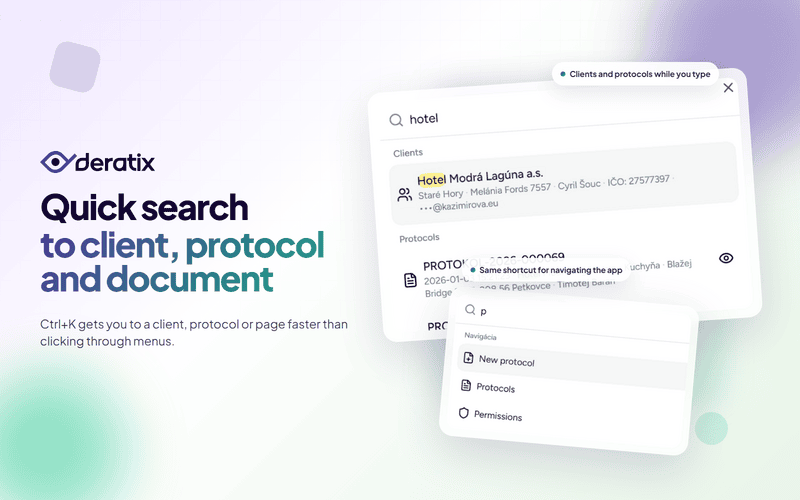
When you need to find a client, protocol, document, or a specific page, you often end up searching through menus rather than data. By the time you click your way to where you need to be, you’ve already wasted valuable time.
Quick search shortens that path. Press Ctrl+K or ⌘+K, start typing, and you’ll see results instantly. Initially, it covered clients, protocols, and navigation items. Later, the search expanded to include documents, users, codebooks, tags, and help articles.
When you need a client or protocol right away
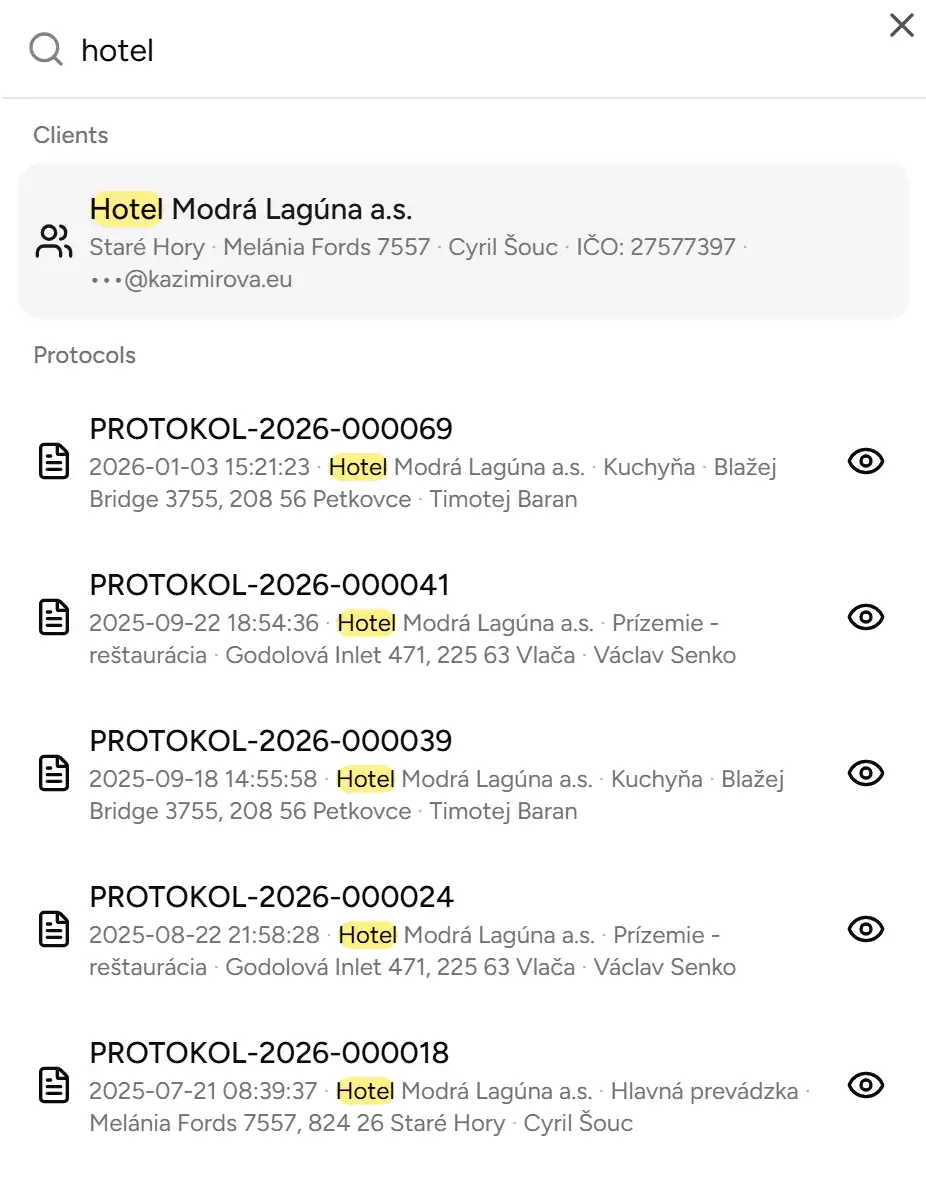
The biggest benefit is straightforward. You don’t have to find the right section or filter through lists. Just start typing a company name or protocol number and results appear immediately.
In practice, this means:
- the office gets to a client card faster,
- a technician or manager can instantly open a specific protocol,
- no more time spent finding the right section and then filtering.
The same shortcut takes you to the right page
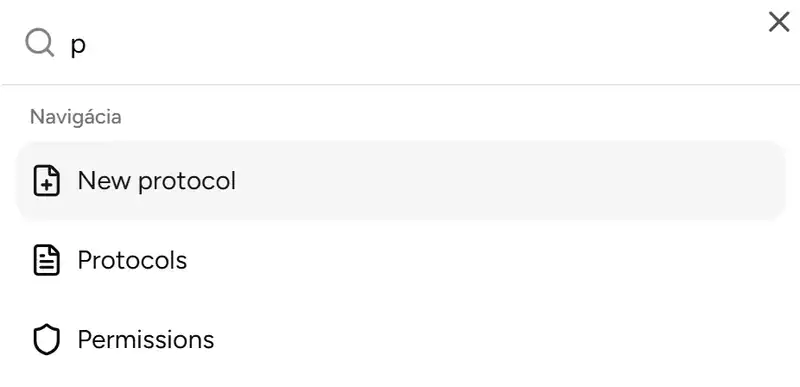
Command Palette isn’t just for searching data. It also works as quick navigation across the application.
If you know you need to go to protocols, create a new protocol, or get to another frequently used page, you don’t have to reach for the menu. Just open the search, type a few letters, use the arrow keys to select a result, and press Enter to confirm.
Instead of navigating through menus, you type exactly what you want to open.
Later, the search began covering more of the system
Once it became clear that this way of working truly saves time, the search expanded to other parts of Deratix. Beyond clients, protocols, and pages, the same shortcut now lets you find documents, users, codebooks, tags, and help articles.
This matters because you no longer have to think about which section something is in. You simply start typing and the system offers what you can open or review.
Useful even when you don’t know where things are yet
Quick search doesn’t just help people who use Deratix every day. It also makes sense when a new team member is still getting oriented and doesn’t yet know where protocols, clients, or other pages are located.
On desktop, you can open it with a keyboard shortcut right from the application header. On mobile, it’s available as a search field on the dashboard, so you can access it immediately after logging in.
A real-world example
A client calls about a previous service visit and needs to quickly confirm when the last service was performed at a specific location. Without quick search, you’d open protocols, set up a filter, find the client, and only then look for the right record.
With Command Palette, just press Ctrl+K, type the client’s name, and you immediately see the client card along with related protocols. When you need to navigate to a different page or open a document instead, you do it the same way.
What matters most
Quick search saves time on tasks that repeat every day. It’s not a big one-time change, but a shorter path to the client, protocol, document, or page you need right now.
That’s exactly why this feature pays off. You use it many times a day, and each shortcut reduces unnecessary clicking.
If you’d like to explore this workflow in more detail, check out navigation in the application, the dashboard, and other updates in the changelog.