As a company adds more technicians and office staff, a practical question comes up fast: who should have full access and who only needs a specific part of the system? When this isn’t set up clearly, everything bottlenecks through one person — or too many people end up with permissions they don’t need.
That’s why Deratix has taken team management to a more practical level. One person can have the entire system under control through the Admin role, the rest of the team gets access based on their actual work, and whenever something changes, there’s a clear record of who did what.
One clear administrator instead of guesswork
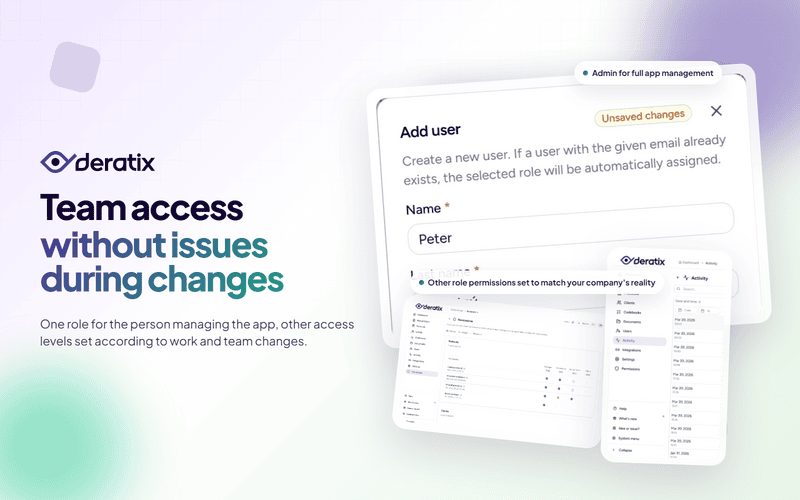
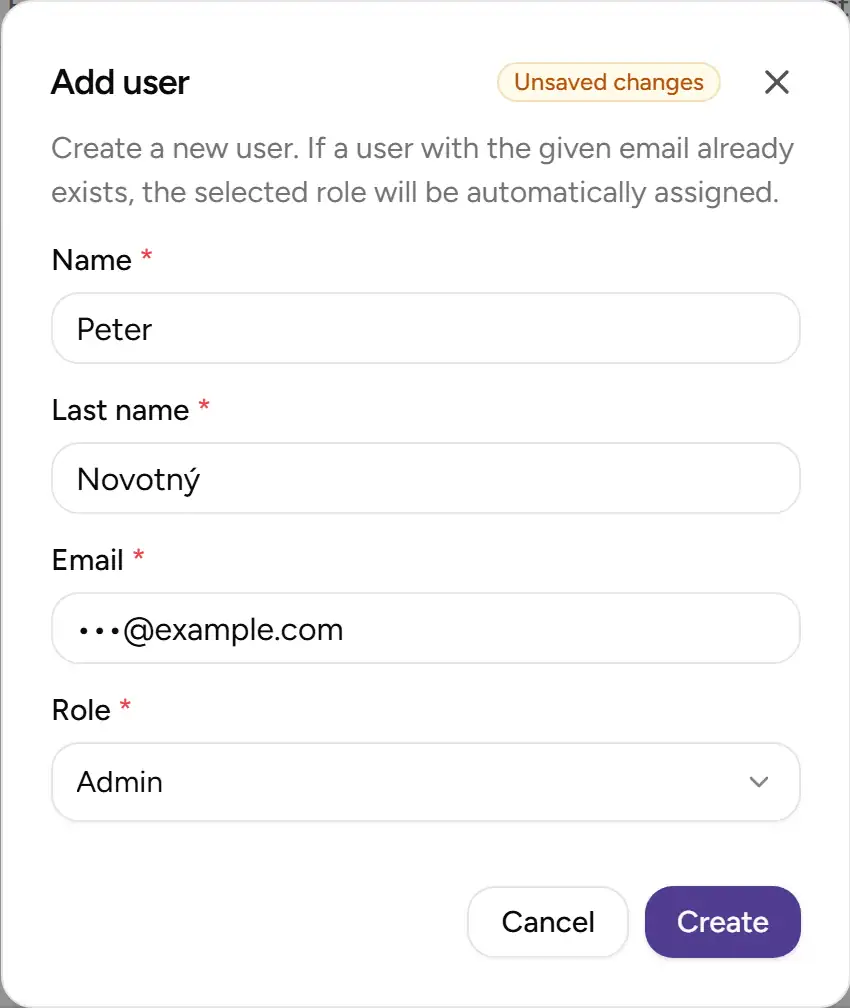
Every company has at least one person who manages the application as a whole. Usually it’s the owner, an operations manager, or someone from the office who handles company settings, team setup, and day-to-day administration.
The Admin role was built for exactly that. You don’t need to piece together permissions one by one. From the start, this role has access to users, permissions, settings, clients, protocols, and all other key parts of the system.
This is especially useful when you want one clear person in charge of the application and don’t want to worry about whether they’re still missing some permission somewhere.
Set up other roles to match how your company actually works
Not everyone in the company needs full access. A technician needs to reliably create protocols and work with clients. The office handles a different part of the workflow. A team lead might have a broader scope, but still doesn’t need to manage everything.
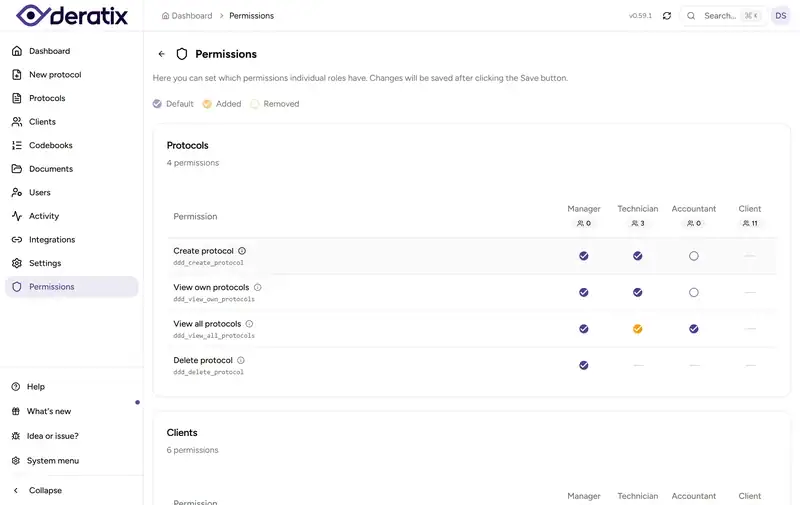
That’s why it matters that Deratix doesn’t stop at adding a new role. A single permissions matrix shows what each role is allowed to do, and you can adjust it to reflect how your company actually operates.
It also helps that you no longer have to guess what individual permissions do. Each setting includes an explanation of what it controls and when it makes sense to enable it. This saves time — especially when you’re setting up access for a new team member and don’t want to rely on trial and error.
Team changes stay organized
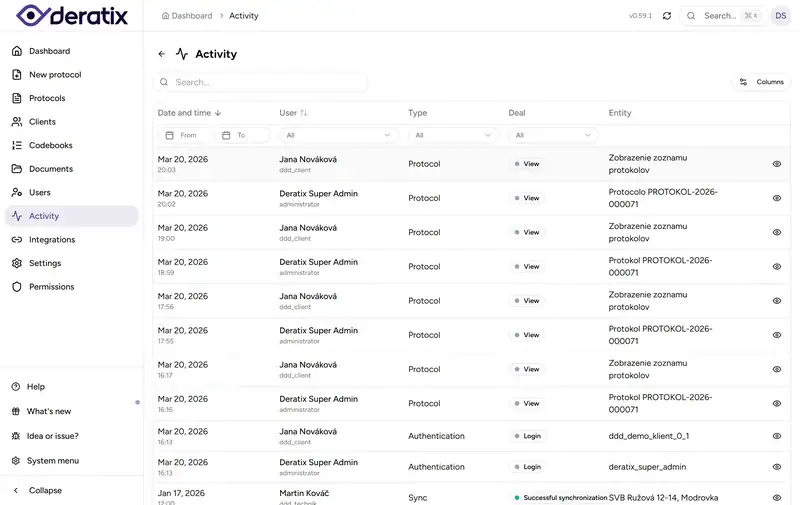
When more than one person manages the team, it helps to have a clear record of what changed. The activity history shows when a user account was created, when a role was assigned, and when a role was changed.
This is most useful in situations where something in the company suddenly behaves differently and you need to find out why quickly. Instead of digging through messages or asking colleagues, you open the history and see who made the change and when.
A real-world example
A company owner wants the office to be able to add technicians, configure their access, and handle routine team administration. At the same time, they don’t want everyone working with the same permissions.
They assign the Admin role to one person. Technicians keep their standard role, the office gets access only to the parts of the system they need for their work, and the remaining permissions are fine-tuned in the permissions settings. When a new colleague joins or someone’s role changes, there’s a record of it in the activity history.
This kind of setup is particularly useful when a company is growing and no longer wants to handle access informally.
What matters most
The biggest benefit isn’t that there’s a new role. What matters is that team management stops being improvised.
One person can have the application under control, the rest of the team gets only the parts of the system they actually need, and changes to access remain traceable. That’s the difference between a team that grows with structure and one where permissions are only dealt with after a problem appears.
If you’d like to explore this area in more detail, check out Team management, user management, permissions, and activity history.